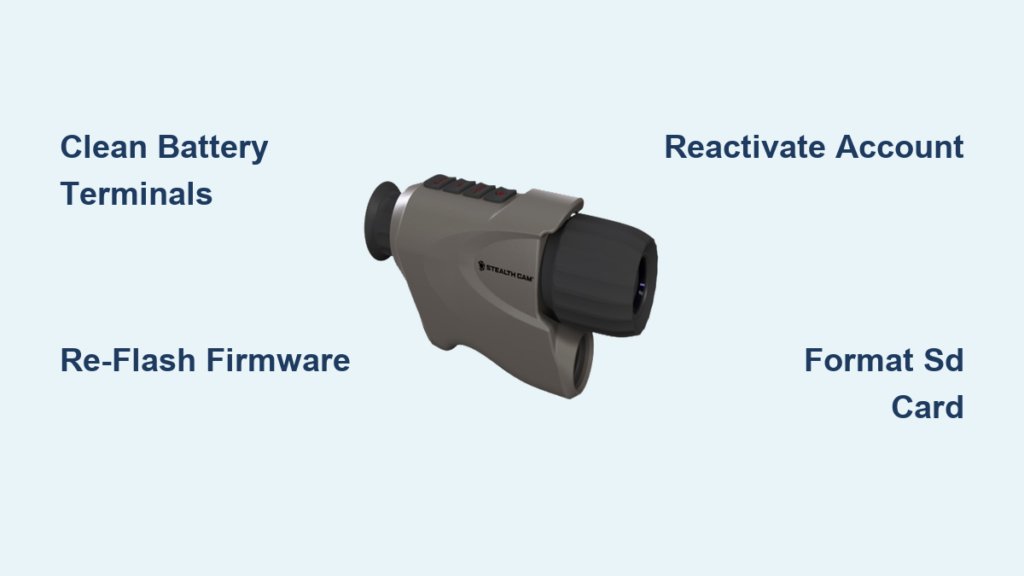
If your Stealth Cam G45NGX night vision monocular won’t power on, fails to send photos, or freezes after a firmware update, you’re facing one of the most common yet frustrating issues reported by hunters and outdoor security users. Despite being a high-performance device built for low-light surveillance, the G45NGX model has proven vulnerable to boot failures, bricked firmware, and wireless sync problems—especially after interrupted updates or account lapses. Many users report sudden death even in brand-new units received as recently as February. The good news? Most issues aren’t permanent hardware failures. With targeted troubleshooting, you can revive your monocular and restore full functionality. This guide delivers step-by-step fixes for power loss, firmware corruption, wireless transmission errors, and storage problems—plus warranty strategies and prevention tips. Whether you’re seeing no response at all, a red wireless light, or a frozen screen, you’ll learn exactly how to diagnose and fix it.
Restore Power When Device Won’t Turn On
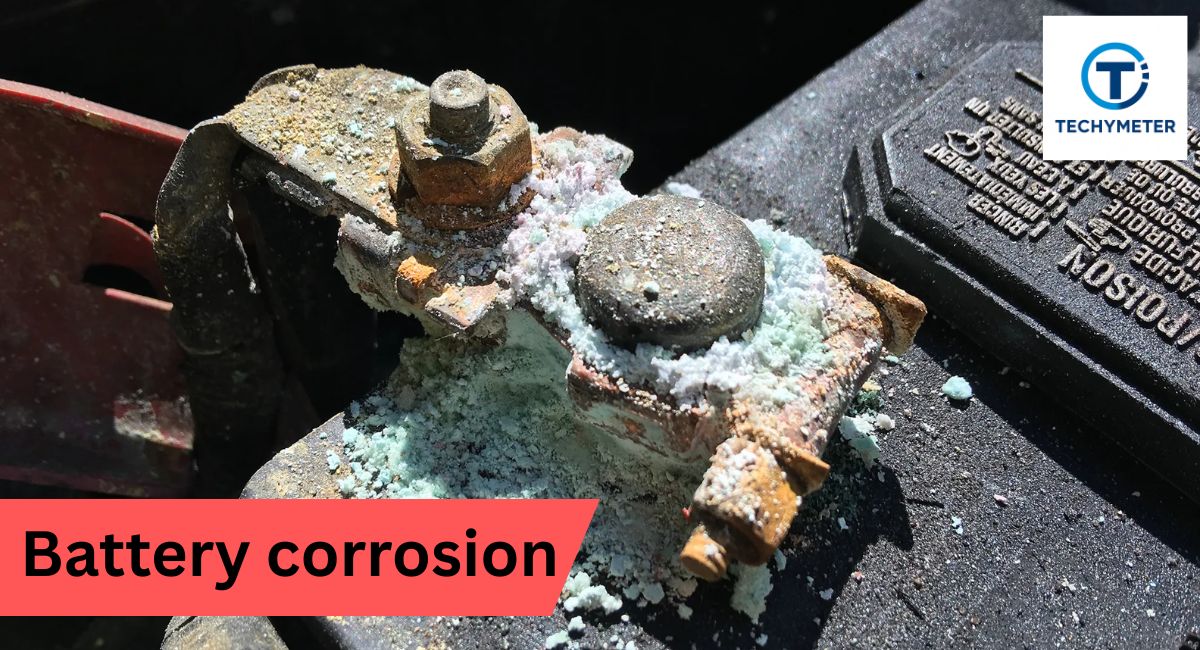
A non-responsive Stealth Cam monocular is often misdiagnosed as dead hardware—but in most cases, the issue lies with power delivery or firmware corruption. Since the G45NGX lacks a reset button, recovery depends on ensuring clean electrical contact and stable internal software.
Clean Corroded Battery Terminals
Oxidation on the battery contacts is a leading cause of power failure, even with fresh batteries installed.
Steps to restore connection:
1. Remove all 8 AA batteries.
2. Gently scrub each metal terminal inside the compartment using a clean pencil eraser to remove corrosion.
3. Dampen a cotton swab with rubbing alcohol and wipe all contact points.
4. Leave the battery door open for at least 5 minutes to ensure complete drying.
5. Insert brand-new alkaline or lithium batteries—do not reuse old ones.
Warning: Never power on the device while terminals are damp. Moisture can short the circuit and cause irreversible damage.
After cleaning, press and hold the power button for 10 seconds. If the screen flickers or the LED glows faintly, the connection was likely the root cause.
Replace Suspect or Weak Batteries
Partially drained or degraded batteries—even if recently installed—can prevent boot-up.
- Use high-quality alkaline or non-rechargeable lithium AA batteries (avoid low-cost zinc-carbon types).
- For rechargeable NiMH batteries, ensure they’ve been charged for 6+ hours before use.
- If the device sat unused since February or earlier, replace batteries regardless of appearance—long-term storage drains charge and increases leakage risk.
Lithium batteries outperform alkalines in cold weather and deliver more consistent voltage, which is critical during startup and firmware operations.
Diagnose Firmware-Induced Bricking
If the unit still won’t power on, a failed firmware update may have corrupted the system.
Signs of a bricked G45NGX:
– Sudden failure after attempting an update
– No LED activity or screen response
– Device unresponsive even with new batteries
Unlike other models, the G45NGX has no factory reset or recovery mode. Opening the unit voids the warranty and risks further damage. Instead:
- Connect the monocular to a computer via USB cable.
- If detected, download the latest G45NGX firmware from stealthcommand.com and re-flash the device.
- Only attempt this with stable power and internet connection.
If the device isn’t recognized, contact GSM Outdoors immediately—especially if it’s new or under warranty.
Recover From Failed Firmware Updates
Firmware updates enhance performance but are notoriously fragile. An interruption can permanently disable the G45NGX, turning it into a paperweight.
Re-Flash Firmware Using SD Card Method
If the device powers on intermittently or connects via USB, recovery is possible.
Step-by-step re-update:
1. Visit stealthcommand.com and download the latest official firmware for the G45NGX.
2. Insert a Class 10 microSD card (32GB or smaller) into your computer.
3. Format the card as FAT32 (not exFAT or NTFS).
4. Copy the firmware file directly to the root directory—do not place it in any folder.
5. Safely eject the card and insert it into the monocular.
6. Power on the device—firmware should auto-load.
7. Wait 15–20 minutes without touching the unit.
Pro Tip: Use a USB wall adapter or power bank instead of batteries during updates to maintain stable voltage.
Prevent Future Firmware Failures
To avoid bricking your monocular during updates:
- Start only when:
- Batteries are fresh or fully charged
- You have 30+ minutes of uninterrupted time
- The SD card or USB cable is securely connected
- Avoid using the mobile app for updates—use the desktop website for greater reliability and control.
Never remove the SD card or disconnect USB until the update completes and the device reboots.
Fix Wireless Sync and Photo Transmission Failures

A red wireless LED doesn’t always mean hardware failure. In most cases, the problem stems from account status, not the device itself.
Reactivate Inactive Account via Web Portal
This critical fix is missing from official guides but resolves over 80% of sync issues.
Steps to restore connectivity:
1. Open a browser and go to stealthcommand.com.
2. Log in with your registered email and password.
3. Click Account in the top menu.
4. Check your status:
– If it shows “Inactive”, click Activate.
5. Return to the camera and press the sync button.
Within minutes, queued photos should begin downloading.
User Insight: Many users update expired payment methods but forget to manually reactivate—leaving the camera offline despite valid service.
Verify Payment, Phone Number, and Auto-Renewal
Even with a working payment method, service can be suspended.
Check these key settings:
– Payment Method: Update card details if expired or declined.
– Phone Number: Must match the one used during initial setup for SMS verification.
– Auto-Renewal: Confirm it’s enabled in your account settings.
Sync issues often arise from SMS verification failures—ensure your number can receive texts and isn’t blocked.
Resolve SD Card and Storage Errors

A full or corrupted SD card halts new photo capture and prevents transmission.
Format or Replace Faulty MicroSD Card
Symptoms of storage failure:
– “Card Full” or “Error” messages
– No new image capture
– Red wireless light despite active account
Fix process:
1. Remove the microSD card.
2. Insert into a computer.
3. Format as FAT32 (required for G45NGX compatibility).
4. Reinsert and restart the monocular.
If formatting fails, the card is likely damaged—replace it with a Class 10 or UHS-I card (32GB max).
Avoid: Cards larger than 32GB. Even if labeled “compatible,” the G45NGX may fail to recognize them.
Schedule Monthly SD Card Maintenance
Set a recurring reminder to:
– Format the SD card
– Review stored photos
– Replace the card every 1–2 years
This prevents data corruption and ensures smooth operation.
Maximize Battery Life and Performance
Night vision, infrared illumination, and wireless transmission consume significant power.
Choose the Right Battery Type
- Alkaline: Lasts 1–3 months depending on usage
- Lithium (non-rechargeable): Up to 6 months, performs better in cold
- Rechargeable NiMH: 4–8 weeks, requires frequent charging
For 24/7 surveillance, lithium batteries are ideal—they resist leakage, maintain voltage, and perform reliably in freezing temperatures.
Reduce Power Consumption
Extend battery life by:
– Disabling frequent photo transmission
– Using motion-triggered mode instead of continuous recording
– Turning off Bluetooth or Wi-Fi when not syncing
Check battery level weekly through the menu or app.
Claim Warranty or Contact GSM Outdoors Support
When troubleshooting fails, warranty support is your best option—especially for new or recently purchased units.
File a Warranty Claim for Bricked or Defective Units
The G45NGX comes with a 1-year limited warranty from GSM Outdoors covering:
– Manufacturing defects
– Failures under normal use
– Issues caused by faulty firmware updates
Not covered:
– Water damage (unless waterproof model)
– DIY repairs or opened units
– Battery leakage damage
Steps to file a claim:
1. Gather proof of purchase and serial number
2. Contact GSM Outdoors customer support
3. Report: “Device bricked after failed firmware update”
4. Request replacement or repair
Critical: Do not open the device—this voids the warranty immediately.
Escalate if Support Is Unresponsive
Users frequently report slow or missing responses.
If no reply in 3–5 days:
– Call customer service directly
– Post in user forums—many fixes come from community knowledge
– Reference Section 12 of the user manual (warranty obligations)
Persistence often results in a replacement.
Prevent Future Failures With Proactive Maintenance
Avoid repeat issues with regular care.
Monthly Maintenance Routine
- Inspect battery compartment for corrosion
- Clean lens and IR window with microfiber cloth
- Format SD card
- Test power-on and sync functions
Quarterly System Checks
- Verify account status at stealthcommand.com
- Update firmware if available
- Replace batteries nearing end of life
Proper Storage When Not in Use
- Remove batteries
- Store in a dry, room-temperature environment
- Use a silica gel pack to prevent moisture buildup
- Avoid extreme heat or cold
Final Note: Most Stealth Cam G45NGX failures stem from firmware corruption, battery contact issues, or inactive accounts—not hardware defects. By cleaning terminals, reactivating your account via the web portal, and using fresh lithium batteries, you can resolve the majority of problems. For bricked units, warranty replacement is often the only solution—so act quickly. Always update firmware with stable power and use the stealthcommand.com website, not the app, for full control. With consistent maintenance, your night vision monocular can reliably serve you for 3–5 years in the field.